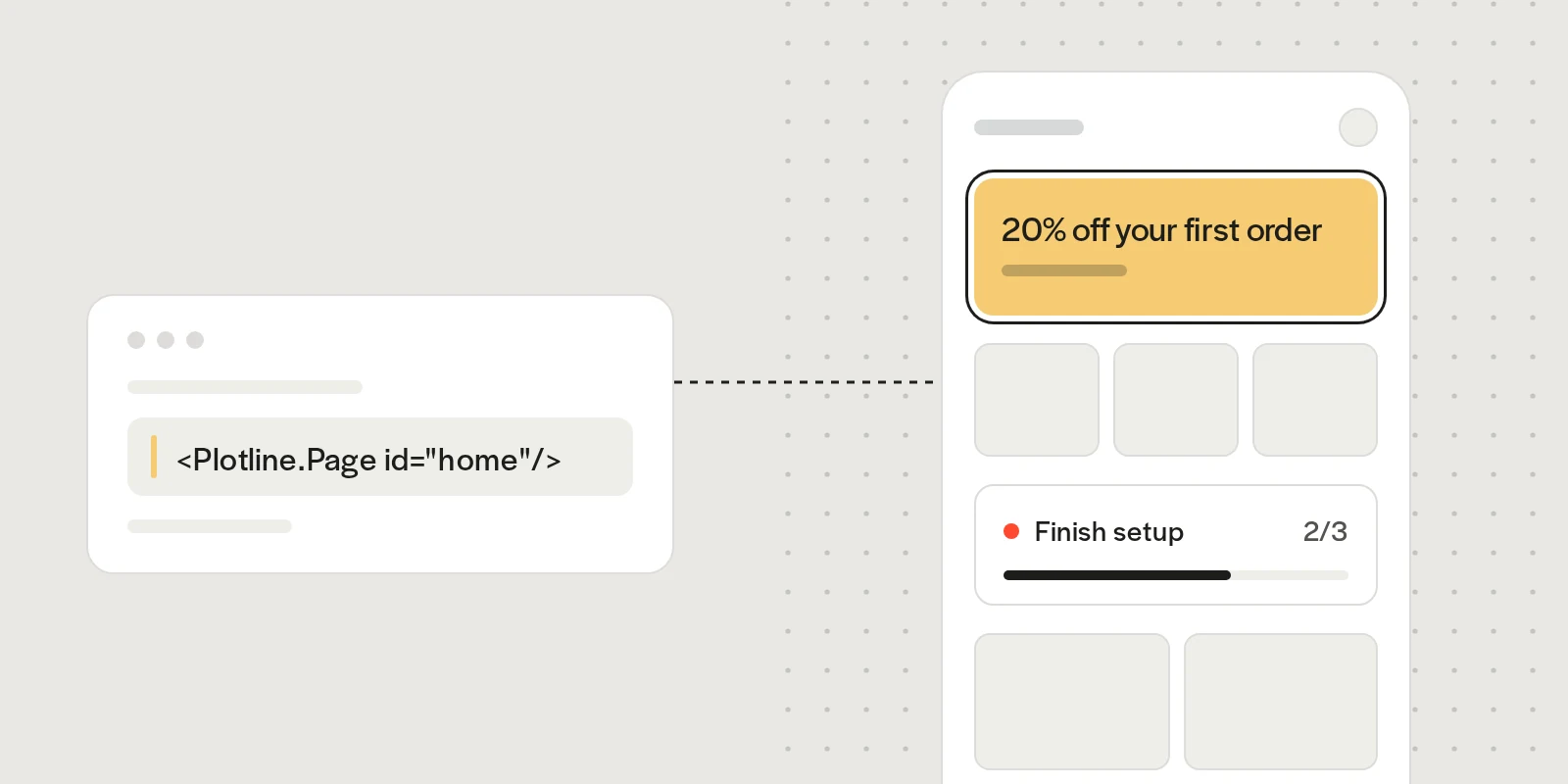
Plotline widgets let teams add personalized banners, carousels and other content to a fixed location in their app. Each location needs a placeholder in the app’s code. Once that placeholder is in place, teams can change its content from the dashboard.
Pages extends this to a screen made up of several rows. Teams can choose which rows a user sees and change their order without shipping another app build. A new user might see an onboarding checklist above a welcome offer, while a returning customer sees their cart followed by product recommendations.
We built Pages on the existing widget system. That gave us targeting and rendering for individual rows, but we still needed to handle the behaviour of the page as a whole. Loading every row would consume resources for content the user might never reach. Rebuilding the page whenever its configuration changed could interrupt a video or reset a carousel. Older SDKs also needed a way to handle layout types introduced after the app shipped.
This post explains how we addressed those constraints.
Moving from a placement to a page
A fixed placement works well when an app needs a banner between two existing components. The surrounding layout belongs to the app, and a campaign supplies content for that location. Moving the banner elsewhere still requires a change to the app.
Giving the app raw card data provides more control over rendering. Engineers can use their own components and choose how to arrange them. They also take responsibility for supporting each layout and reporting its impressions and clicks. This can suit a team that wants to maintain the screen in code, but it leaves layout changes tied to engineering work.
For Pages, we wanted teams to manage row selection and order alongside their campaign targeting. The SDK would render those rows using the widget components it already supported. The app would retain control of the surrounding screen and scrolling.
That division lets a growth team move an onboarding row above an offer for new users, or put cart recovery first for returning customers, from the dashboard. The app team integrates the page placeholder once and continues to own the rest of the app.
Representing a page in the widget system
The SDK already groups widgets that share a placeholder into layouts such as carousels and swipe strips. We extended that model with a CONTAINER layout that stacks its widgets vertically.
The placeholder’s element ID identifies where the page belongs. During initialization, the SDK receives a configuration for that location. The following example shows the relevant fields:
{
  "clientElementId": "home_feed",
  "layoutType": "CONTAINER",
  "pageId": "<page id>",
  "settings": {
    "backgroundType": "COLOR",
    "backgroundColor": "#FFFFFF",
    "rowSpacing": 12,
    "loaderUrl": "<lottie url>"
  }
}
Each row remains a Plotline widget with its own targeting. The server determines the rows and their order for a user; the SDK receives the configuration and renders it. Keeping rows in the widget model also means they use the existing rendering and event-handling paths.
Loading rows as the user scrolls
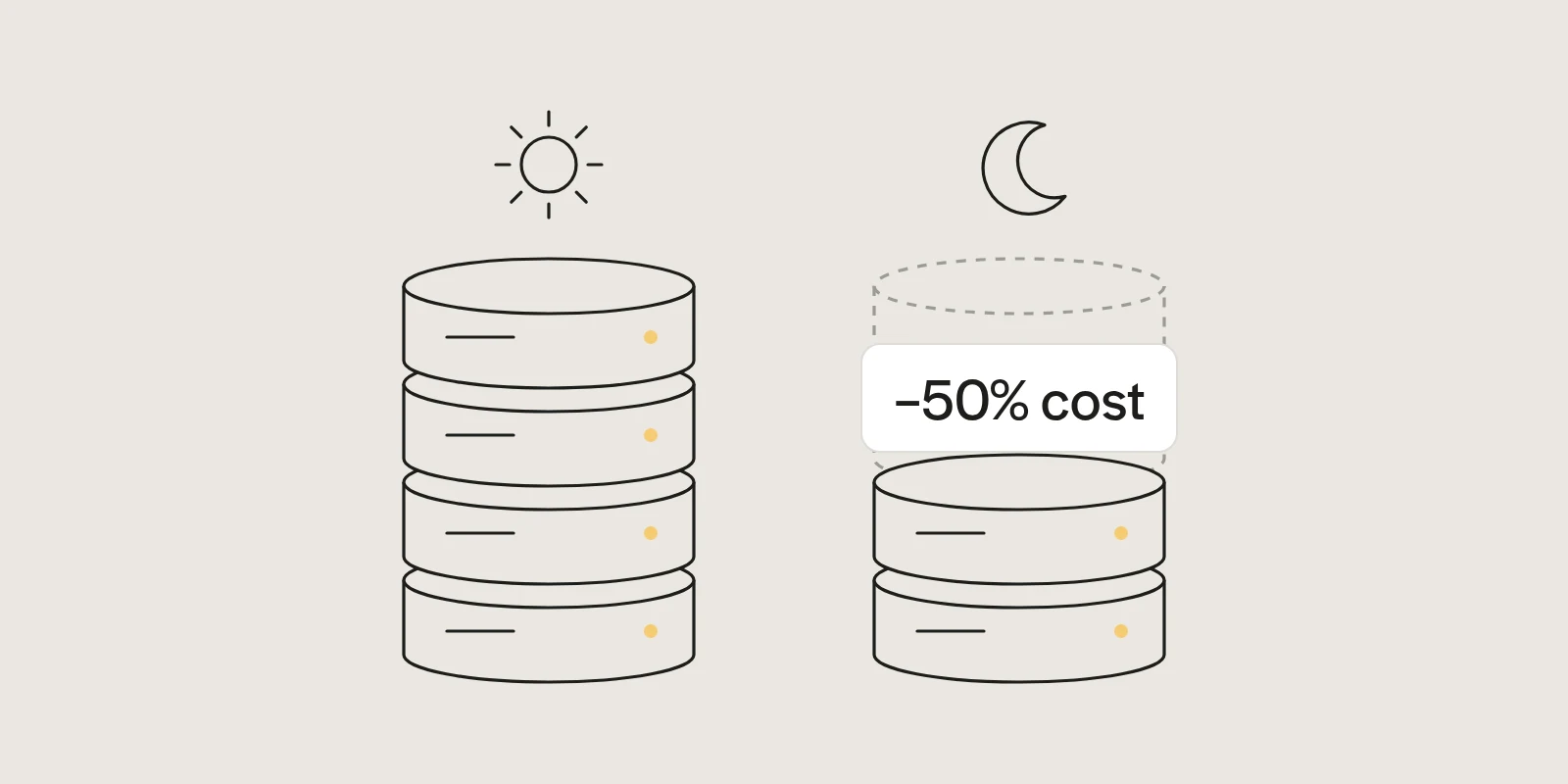
A page can contain images, videos and Lottie animations across many rows. Creating all their views and loading all their media when the screen opens would do work for rows far below the viewport. Those resources would remain allocated even if the user left after reading the first row.
The SDK creates lightweight placeholders for the rows, then uses their distance from the viewport to decide when to load and release them. The loading logic can be expressed as this pseudocode:
on scroll or layout:
  for row in page.rows:
    if row is placeholder and within 1.5 screens of viewport:
      load(row)
    else if row is loaded and more than 3 screens away:
      release(row)
Loading ahead of the viewport gives nearby rows time to prepare before the user reaches them. A row stays loaded for longer after it moves away, so a small movement back up the page does not immediately require it to load again. Once it passes the release threshold, the SDK returns it to a placeholder.
This reduces the views and media held for distant rows. The app’s scroll container continues to handle scrolling; the SDK observes row positions to manage their resources.
Updating rows without rebuilding the screen
A page can receive a new configuration while the user is looking at it. Replacing every view on each refresh would discard state even when most of the content had not changed. A video could restart because an unrelated offer further down the page changed.
We give each row an identity key and a content key. On refresh, the SDK compares the incoming rows with the existing ones. When both keys match, it keeps the view. When a row is new or its content has changed, it replaces that row.
There are cases where the SDK cannot safely reconcile the two versions. Duplicate row identities make the match ambiguous, and a change to page-level settings can affect the entire layout. In those cases, it rebuilds the page.
Flutter also defers changes to rows that are currently visible. It holds the update until the affected row leaves the screen, the app moves to the background, or the deferral deadline passes. This gives a user time to finish interacting with the content, while placing a limit on how long an update can wait.
Handling cached configurations and older SDKs
Customers update their apps at different rates, and their users can keep an older build installed for months. The dashboard may therefore produce a layout type that a particular SDK version does not recognize.
The SDK uses a dedicated builder for each layout type it understands. For an unknown type, it falls back to the existing swipe-strip builder. That fallback cannot reproduce a new layout exactly, but it gives older SDKs a rendering path for the widgets they receive.
We also use the same parsing code for cached page configurations and network responses. A configuration read from disk goes through the same interpretation as one received during initialization. This avoids maintaining two parsers whose handling of defaults or layout fields could drift apart. It does not prevent a fresh response from containing different content.
While content loads, the page displays its configured loader, capped at roughly one screen in height. If SDK initialization fails, the SDK retries before displaying the app’s configured error layout. These states need to be part of the integration because the page may occupy most of the screen.
Keeping a remote fallback for loading and updates
Viewport-based loading and row-level refresh add state to the renderer. A row may have a placeholder, a loaded view or an update waiting to be applied. These paths also need to work within the host app’s lifecycle.
We control row-by-row loading, row-level refresh and deferred Flutter updates with separate backend flags. If one of those paths causes a problem for a customer, we can disable it remotely and return to the simpler behaviour. Separate flags let us switch off the affected path without disabling the other changes.
Measuring the page and its rows
The SDK sends a Plotline Page Viewed event when part of the page becomes visible, once per session. The event includes the page ID and row count. Widget events retain page and row context so teams can examine interactions within the page.
Page views and row interactions answer different questions. Opening a page does not mean a user reached every row. When evaluating a layout change, teams need to consider the rows users saw and interacted with, along with the goal event they are trying to improve.
For example, a team testing cart recovery near the top of the page can evaluate whether users interact with that row and complete checkout. The same audience definitions used for other Plotline campaigns can determine who receives that page configuration.
What teams can change after integration
With the placeholder installed, a team can configure a page for different stages of the customer lifecycle. An onboarding row can appear first for users who have not completed setup. Returning users can receive cart or browse-recovery content populated from the Product Catalog. A seasonal campaign can change the row selection and order for its audience, then restore the previous configuration when the campaign ends.
Teams can also try a layout with a smaller segment before extending it to more users. The engineering boundary remains the set of widget components supported by the installed SDK; a new native rendering capability still needs SDK support.
Building on widgets let us reuse their targeting and rendering while concentrating the page-specific work on resource loading, row reconciliation and compatibility. The dashboard controls the page configuration, and the SDK manages how that configuration becomes views inside the customer’s app.
To see the page configuration and the new-user and returning-user examples, explore Pages in the Fall Release or book a walkthrough.