TL;DR
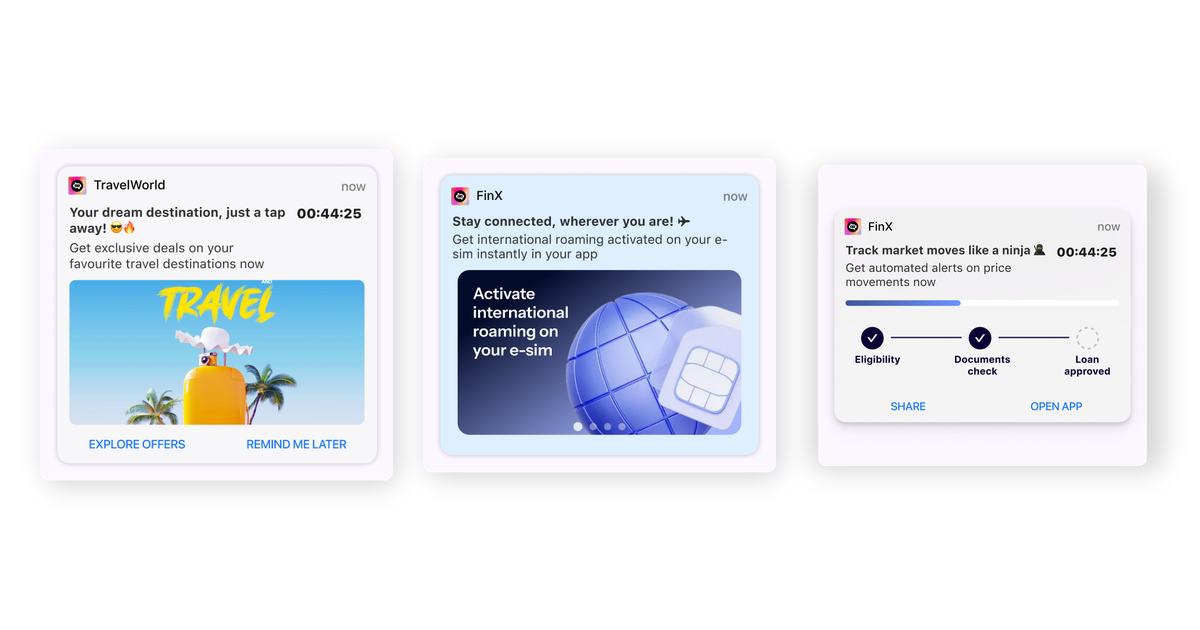
- Interactive push notifications go beyond plain text — they include carousels, timers, grids, sticky notifications, and dynamic content that users can interact with directly
- These templates drive significantly higher CTRs compared to basic push notifications
- Key templates: product carousels, countdown timers with progress bars, grid layouts, card-with-label designs, auto carousels, sticky notifications, and background image templates
- Use cases span e-commerce promotions, FOMO-driven flash sales, content recommendations, live order tracking, and re-engagement campaigns
- With tools like Plotline, you can deploy 20+ rich push templates without writing code — new templates are added dynamically without SDK updates
Why Standard Push Notifications Are No Longer Enough
The average smartphone user receives 46 push notifications per day. In this crowded notification tray, a basic text notification is easy to ignore. Users have become desensitized to generic push messages — open rates for standard notifications hover around 2-3% across most industries.
Interactive push notifications change the game. Instead of a static message that says “Check out our new collection,” imagine a swipeable carousel showcasing four products — each with its own image, title, price, and CTA — right inside the notification shade. No app open required to browse.
This is the shift from informational push to actionable push. The notification itself becomes a micro-experience.
What Makes a Push Notification “Interactive”?
An interactive push notification includes one or more of these elements:
- Rich media: Images, GIFs, or video thumbnails that go beyond plain text
- Multiple CTAs: Two or more action buttons, each linking to a different screen or action
- Swipeable content: Carousels that let users browse multiple items within the notification
- Dynamic elements: Countdown timers, progress bars, or live-updating content
- Persistent behavior: Sticky notifications that remain pinned until explicitly dismissed
- Personalization: Dynamic content populated with user-specific data like names, recommendations, or transaction details
Let’s break down the most effective templates and when to use each one.
Interactive Push Notification Templates
1. Product Carousel
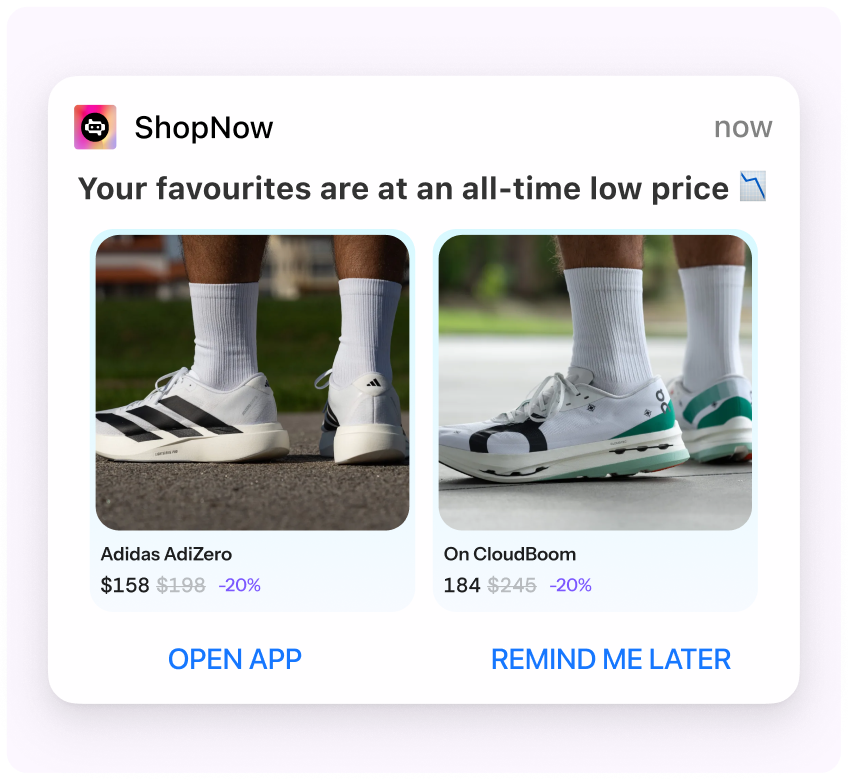
The product carousel template displays multiple products or offers in a single notification that users can swipe through horizontally. Each card in the carousel can have its own image, title, description, and a dedicated CTA linking to the respective product page.
Best for: E-commerce apps, marketplace apps, content platforms
Use cases:
- Showcasing products from an abandoned cart
- Displaying personalized product recommendations
- Promoting multiple deals during a sale event
- Highlighting new arrivals across categories
Why it works: Instead of choosing one product to feature, you can showcase 3-5 products in a single notification. Users who aren’t interested in the first product might swipe to discover one they love — increasing the chances of a click-through without sending multiple separate notifications.
2. Countdown Timer with Progress Bar
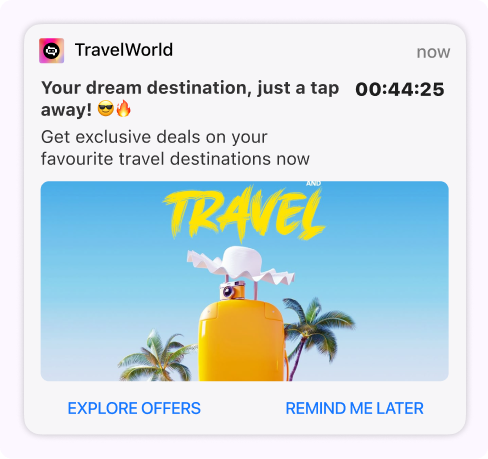
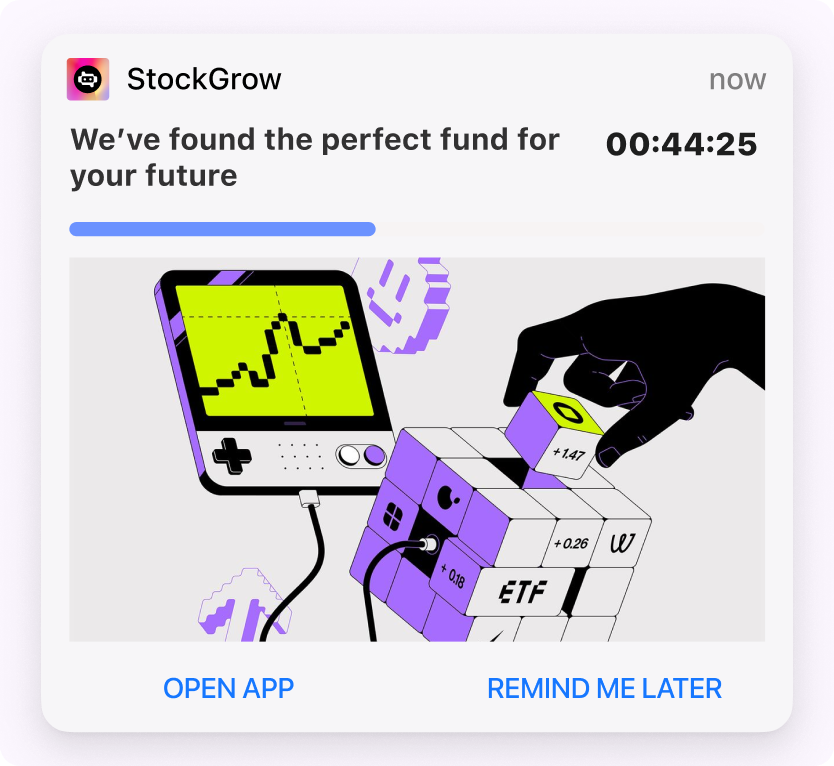
This template adds a real-time countdown timer (and optionally a progress bar) to the notification. The timer ticks down live, creating visible urgency directly in the notification shade.
Best for: Flash sales, limited-time offers, subscription renewals, event reminders
Use cases:
- Flash sale ending in 2 hours — with a live countdown
- Limited inventory alerts (“Only 3 left — offer expires in 45 min”)
- Subscription trial expiring — countdown to conversion deadline
- Event or webinar starting soon — with a “Join Now” CTA
Why it works: The psychological principle of loss aversion makes ticking timers incredibly effective. When users see time literally running out, they’re compelled to act. The progress bar adds a visual cue that reinforces the urgency — the bar depleting alongside the timer creates a dual sense of scarcity.
3. Grid Layout (1x3, 1x4, 2x2)
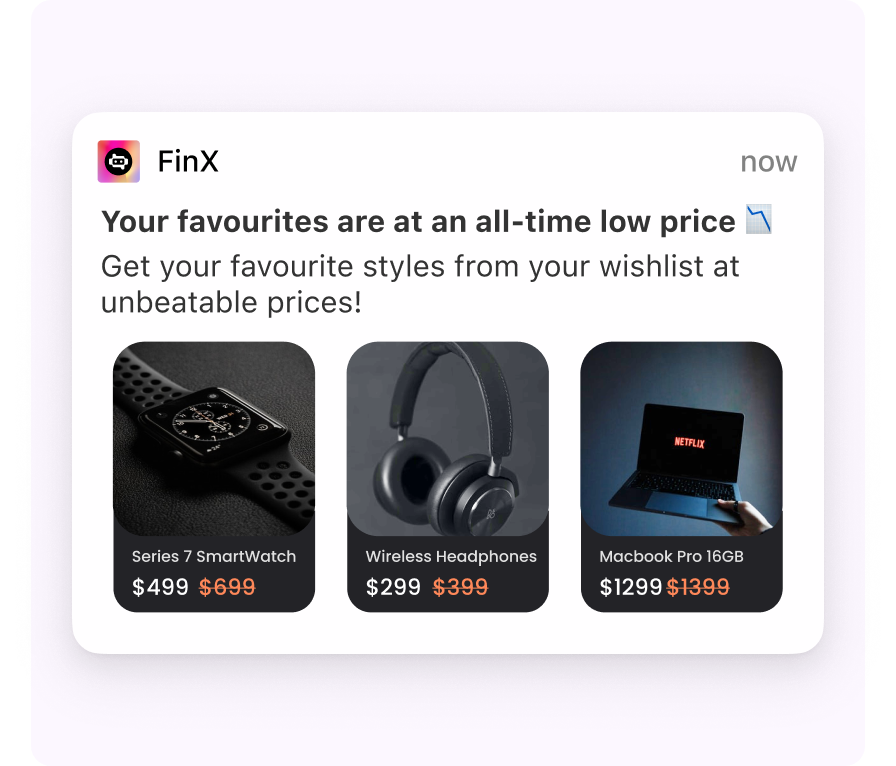
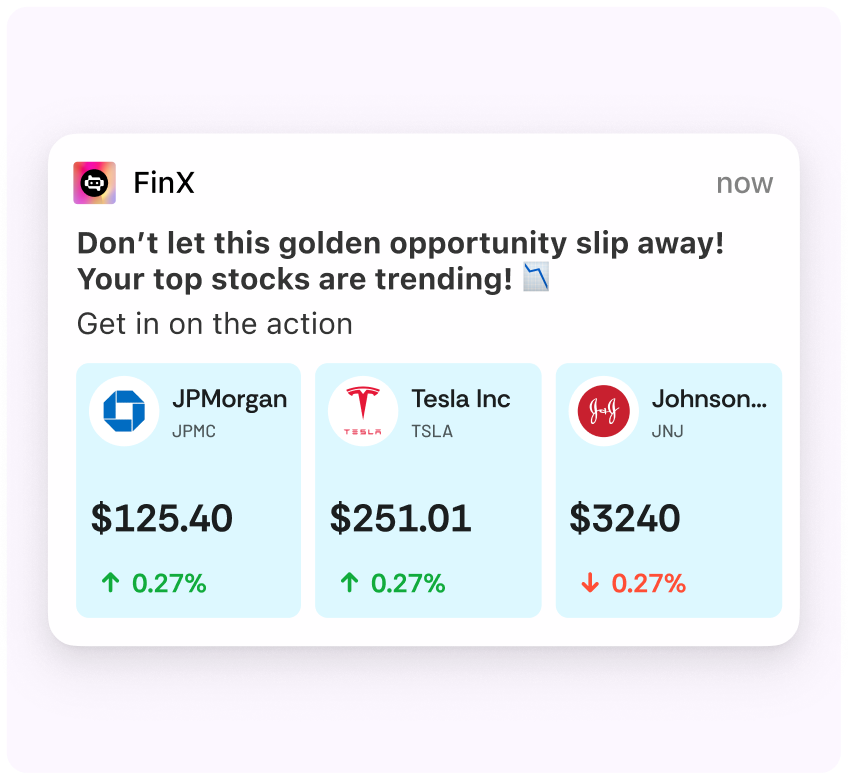
Grid templates display multiple images in a structured grid format within the notification. Layouts include 1x3 (one row of three items), 1x4, and 2x2 configurations. Each image in the grid can link to a different product or page.
Best for: E-commerce, food delivery, fashion, content streaming
Use cases:
- “Top picks for you” — 4 product images in a 2x2 grid
- Daily deals showcase — 3 featured offers side by side
- Content recommendations — 4 trending shows in a grid
- Menu highlights — 3 popular dishes from a restaurant
Why it works: Grids pack maximum visual information into a single notification. They work especially well for visually-driven categories like fashion, food, and entertainment, where the image itself is the primary hook. Users can visually scan multiple options at a glance and tap the one that interests them most.
4. Card with Label
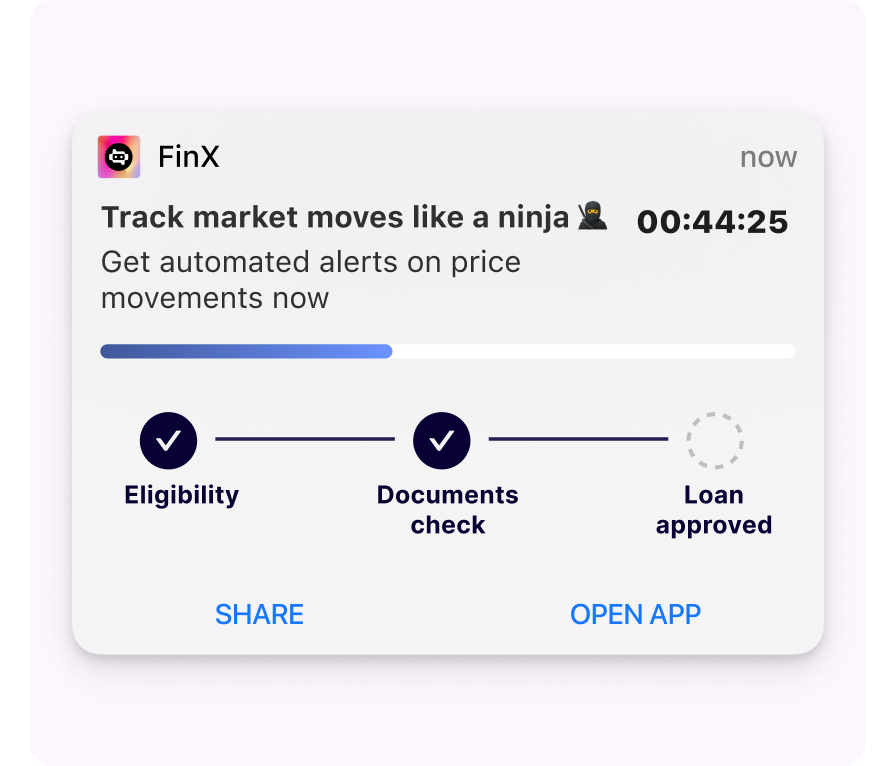
The card-with-label template features a rich card design with a prominent label overlay — perfect for highlighting a specific attribute like a discount percentage, “NEW” tag, or category name. The label grabs attention while the card provides context.
Best for: Promotions, new feature announcements, category highlights, loyalty rewards
Use cases:
- “30% OFF” label on a product card
- “NEW” label highlighting a newly launched feature
- “MEMBER EXCLUSIVE” label for loyalty program notifications
- “TRENDING” label on popular content recommendations
Why it works: Labels act as visual anchors. The human eye is drawn to badge-like elements, making the label the first thing a user notices. Combined with a rich card layout, this template communicates both the hook (the label) and the context (the card content) in a single glance.
5. Auto Carousel
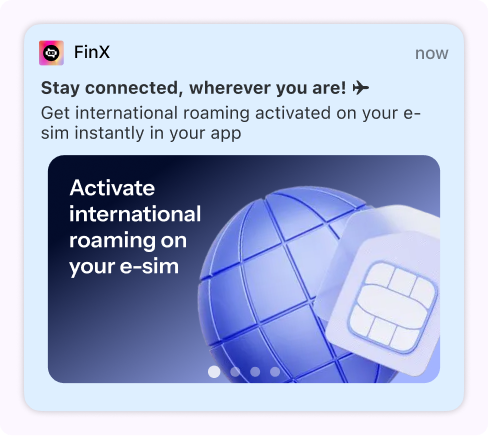
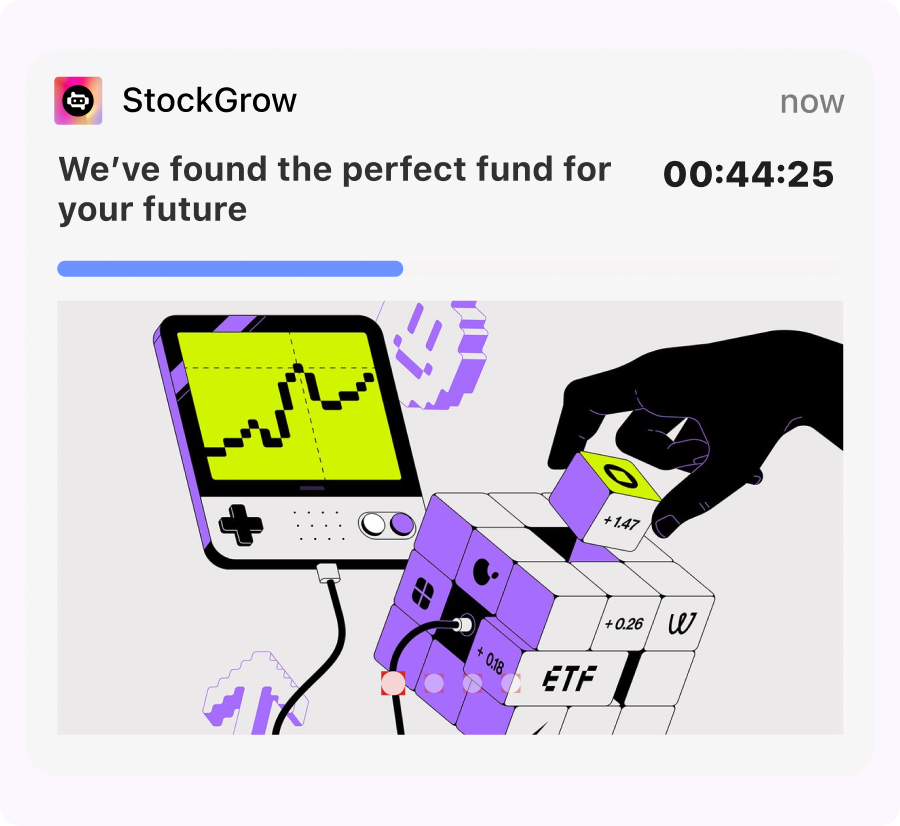
The auto carousel template automatically cycles through multiple cards without requiring user interaction. The carousel advances on a set interval, creating an animated, attention-grabbing notification.
Best for: Brand storytelling, multi-step promotions, event highlights
Use cases:
- A 3-card story: “Step 1: Add to cart → Step 2: Apply code SAVE20 → Step 3: Checkout”
- Event highlights auto-rotating through speakers, sessions, and venue info
- Brand story sequence — cycling through key value props
- Multiple testimonials rotating to build social proof
Why it works: Auto-rotation captures attention even when the user isn’t actively interacting with the notification. The movement in the notification shade draws the eye, making it harder to ignore compared to a static notification. It’s a way to tell a richer story without requiring the user to swipe.
6. Sticky Push Notification
Sticky notifications remain pinned at the top of the notification shade and cannot be swiped away by the user. They persist until the user interacts with a configured dismiss action button.
Best for: Ongoing offers, active sessions, live tracking, persistent reminders
Use cases:
- Live order tracking — “Your order is on its way” with real-time status
- Active subscription offer — “Your free trial ends today. Upgrade now.”
- Ongoing event — “IPL Match Live: CSK vs MI. Watch Now”
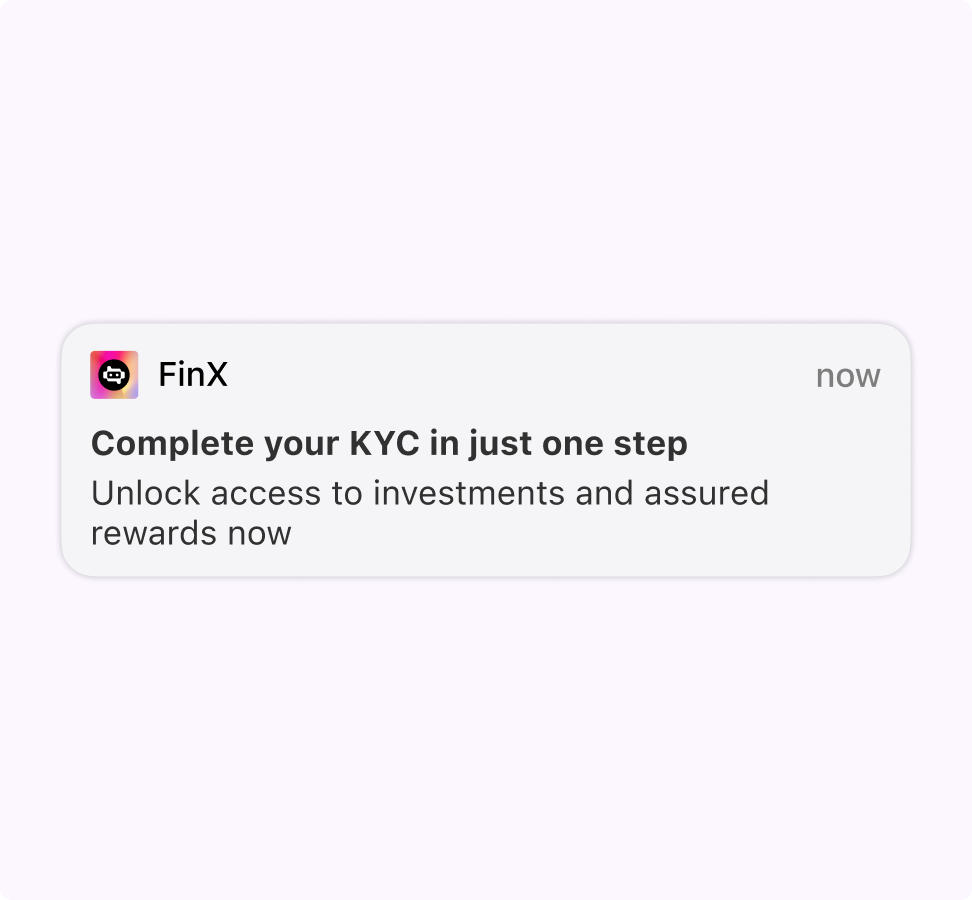
- Persistent reminder — “Complete your KYC to unlock full features”
Why it works: Sticky notifications guarantee visibility. They’re ideal for messages that remain relevant over an extended period — like a live delivery update or an ongoing promotion. The persistence ensures the message isn’t accidentally dismissed, while the explicit dismiss button respects user control.
7. Background Image Template
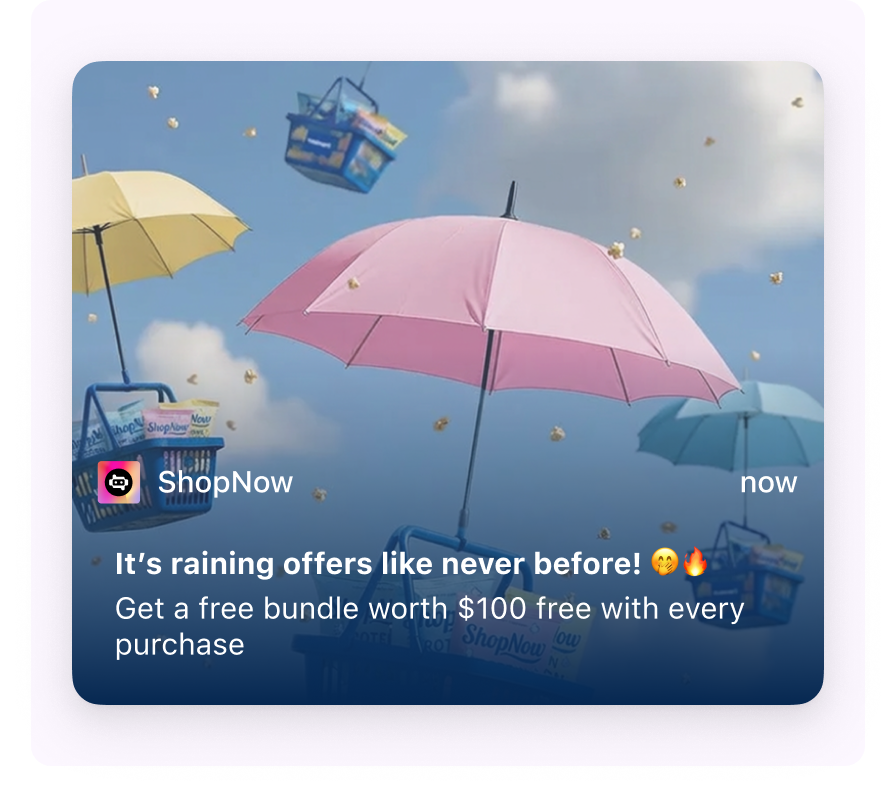
This template uses a full-bleed background image as the notification canvas, with text and CTAs overlaid on top. The result is a visually rich, poster-like notification that stands out dramatically in the notification shade.
Best for: Brand campaigns, seasonal promotions, launch announcements, event invitations
Use cases:
- A festive campaign — Diwali-themed background with “Up to 50% off” overlay
- New product launch — product hero shot as the background
- App milestone — “You’ve completed 100 rides! Here’s a reward” with a celebratory background
- Concert or event promotion — artist image as the background with event details overlaid
Why it works: Background images transform the notification from a standard system element into a branded visual experience. They feel less like a notification and more like an ad or poster — which is exactly the point for brand-heavy campaigns where visual impact matters more than informational density.
8. Timer with Carousel
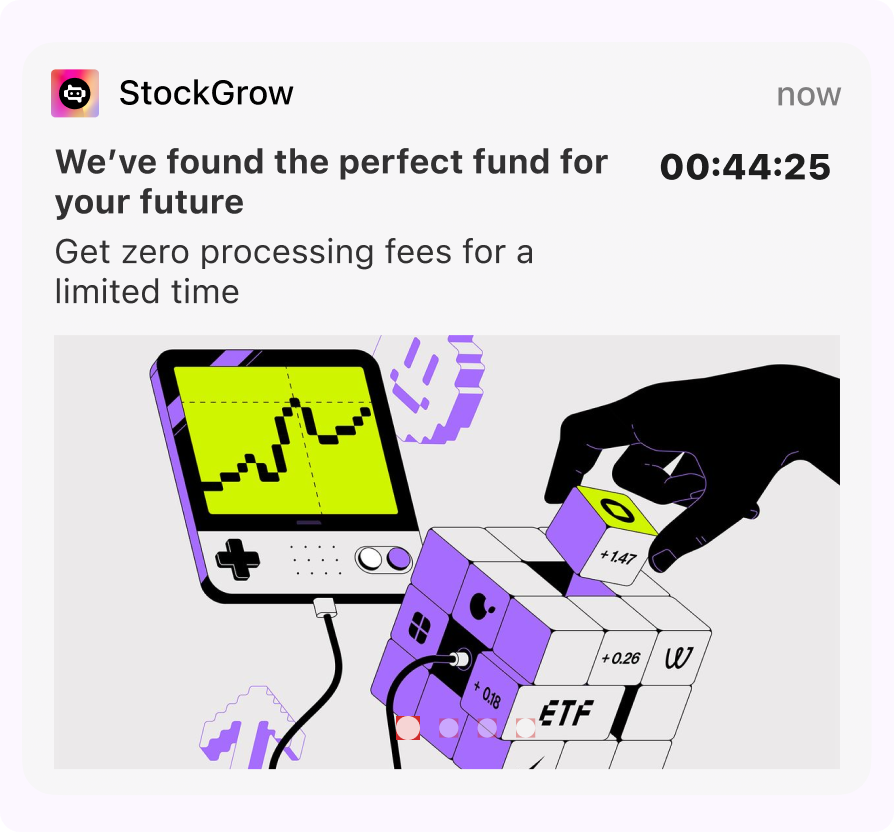
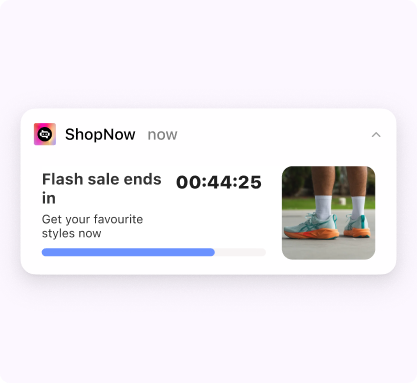
This hybrid template combines a countdown timer with a swipeable carousel — two of the most engaging interactive elements in a single notification. The timer creates urgency while the carousel showcases multiple options.
Best for: Flash sales with multiple products, limited-time multi-offer promotions
Use cases:
- “Flash Sale ends in 2:00:00” — with a carousel of 4 discounted products
- “Happy Hour: Order in the next 30 min” — with a carousel of featured items
- “Auction ending soon” — timer counting down with carousel of auction items
Why it works: This is one of the highest-engagement templates because it combines two psychological triggers: urgency (timer) and choice (carousel). Users feel pressure to act quickly AND have multiple options to choose from, maximizing the chance that one product resonates with them.
9. Dynamic Content Template
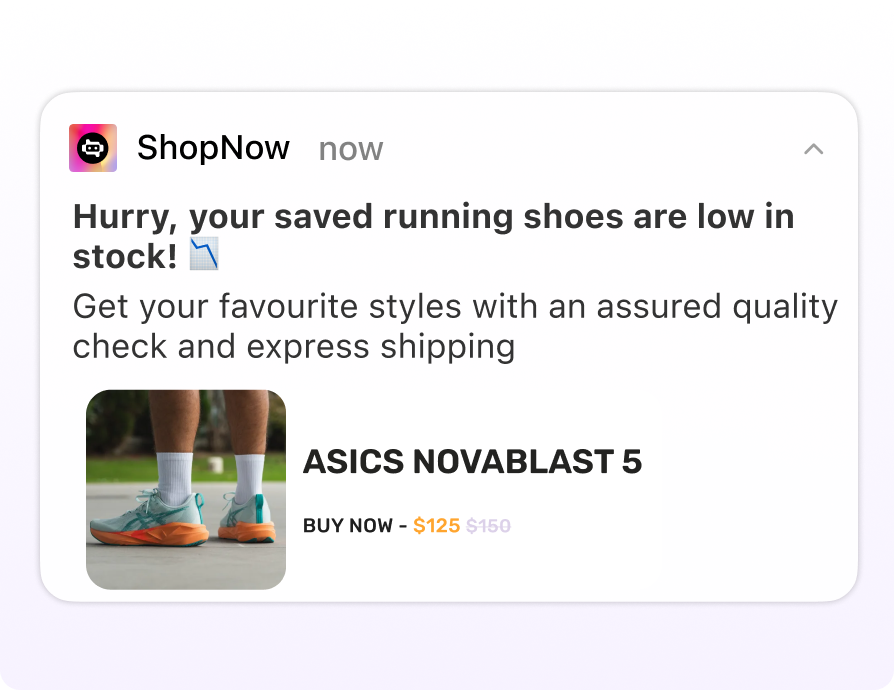
Dynamic content templates pull personalized data into the notification in real time — user names, transaction details, recommendation scores, account balances, or any attribute stored in your user profiles. Combined with Liquid Tags, every notification can feel like a 1:1 message.
Best for: Personalized recommendations, transactional updates, milestone celebrations
Use cases:
- “Hey {first_name}, your watchlist item just dropped 20% in price!”
- “Your SIP of ₹{sip_amount} is due tomorrow. Auto-debit is active.”
- “{user_name}, you’ve been on a 7-day streak! Keep it going 🔥”
- “Based on your last order, you might love: {recommended_product}”
Why it works: Personalization is the single biggest driver of push notification engagement. Users are far more likely to tap on a notification that feels personally relevant than a generic broadcast. Dynamic content makes each notification feel intentional rather than mass-produced.
10. Messaging with Image
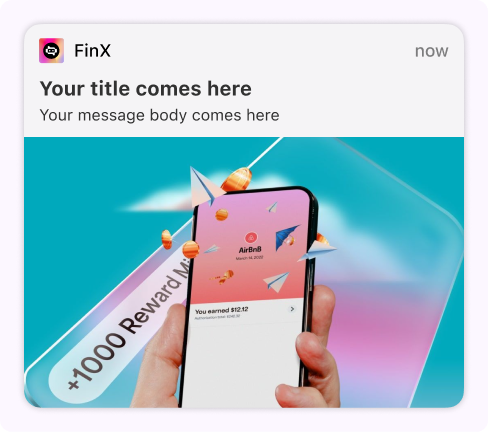
The classic rich push template — a notification with a title, body text, and an attached image. Simple, effective, and universally supported across devices and OS versions.
Best for: General announcements, content updates, promotional messages
Use cases:
- New blog post or article published — with the hero image
- Sale announcement — with a campaign banner
- App update notification — with a screenshot of the new feature
- Social proof — “50,000 users just completed the challenge” with a celebratory image
Why it works: Sometimes simplicity wins. Not every push notification needs a carousel or timer. A well-crafted message with a compelling image can outperform over-designed templates if the message is relevant and the image is eye-catching. This is the reliable workhorse of push notification templates.
Use Cases by Industry
E-commerce and Retail
- Abandoned cart recovery → Product Carousel: Swipeable carousel of items left in cart
- Flash sale promotion → Timer with Carousel: Countdown + top deals in a carousel
- New arrivals → Grid Layout (2x2): 4 new products displayed in a grid
- Price drop alert → Dynamic Content + Card with Label: “PRICE DROP” label with personalized item
- Order tracking → Sticky Notification: Persistent delivery status updates
Fintech and Banking
- SIP/EMI reminder → Timer + Dynamic Content: Countdown to due date with personalized amount
- Credit card offer → Background Image: Visually rich card showcase
- Investment opportunity → Card with Label: “LIMITED” label on a new fund offering
- Transaction confirmation → Dynamic Content: Personalized transaction details
- KYC completion reminder → Sticky Notification: Persistent reminder until action taken
Media and Entertainment
- New content recommendations → Grid Layout (1x3): 3 trending shows side by side
- Live event starting → Timer: Countdown to match/show start
- Personalized watchlist update → Dynamic Content: “New episode of {show_name} is live!”
- Seasonal content collection → Auto Carousel: Auto-rotating holiday movie picks
- Subscription renewal → Timer + Card with Label: “Your plan expires in 3 days” with renewal CTA
Travel and Hospitality
- Flight deal alert → Product Carousel: Multiple destination deals in a carousel
- Booking reminder → Timer: Countdown to check-in or boarding time
- Trip recommendations → Grid Layout (2x2): 4 destination packages in a grid
- Loyalty reward → Background Image: Branded reward announcement
- Live trip tracking → Sticky Notification: Persistent ride/flight status updates
Best Practices for Interactive Push Notifications
1. Match the template to the message intent
Don’t use a carousel just because it looks fancy. If you’re communicating a single urgent message, a timer template serves better. If you’re showcasing options, a carousel or grid is the right fit. The template should amplify the message, not distract from it.
2. Personalize wherever possible
Use dynamic content and Liquid Tags to personalize notifications. Even adding the user’s first name can increase open rates by 10-20%. Personalized product recommendations or account-specific information make the notification feel relevant rather than spammy.
3. Test across devices and OS versions
Not all templates render identically across Android versions and OEMs. Test your templates on at least 3-4 popular devices before going live. Pay special attention to:
- Timer templates on Android 12+ (alarm permission)
- Sticky notifications on Android 14+ (behavior changes)
- Image rendering across different screen densities
4. Don’t neglect the fallback
Every interactive template should have a fallback for devices that don’t support it. If a timer template can’t display the progress bar, ensure the fallback still communicates the urgency with a countdown in the text. If a carousel can’t render, show the first product as a rich image notification.
5. Respect frequency and timing
Interactive notifications are powerful, but overuse kills effectiveness. Set frequency caps (e.g., max 2 push notifications per day) and respect DND windows. A beautifully designed carousel notification at 3 AM will still get your app uninstalled.
6. Use A/B testing to find what works
Run A/B tests between template types for the same campaign objective. You might find that a simple image notification outperforms a carousel for your audience — or that a timer drives 3x more conversions than a static promotion. Let data drive your template selection.
7. Connect push to in-app journeys
The most effective push notifications don’t end at the tap. Use journey stitching to connect push notifications with in-app experiences — when a user taps a flash sale push notification, immediately show a full-screen landing page or bottom sheet with the deals. This creates a seamless experience from notification to conversion.
How Plotline Makes Interactive Push Notifications Easy
Plotline offers 20+ rich push notification templates out of the box, with no code required for setup beyond the initial SDK integration. Here’s what makes it different:
No-code template builder: Select a template, customize the content, set your audience and triggers, and publish — all from the dashboard. No engineering effort per campaign.
Dynamic template additions: New templates are added to the Plotline platform without requiring SDK updates. Your template library grows automatically.
Built-in personalization: Use Liquid Tags to dynamically insert user attributes into any template. Personalize everything from names to product recommendations to account balances.
Journey integration: Stitch push notifications into multi-step journeys. Combine push with in-app nudges, bottom sheets, or modals for a cohesive cross-channel experience.
Auto dark/light mode: Templates automatically adapt to the user’s system theme, ensuring your notifications look native regardless of the device’s display setting.
A/B testing built in: Test different templates, copy, and images against each other with built-in A/B testing and Smart Switch to automatically select the winning variant.
Analytics that matter: Track delivery, open rates, click-through rates, and downstream conversion — all the way from notification sent to goal completion.
Getting Started
Interactive push notifications are no longer a nice-to-have — they’re the standard for apps that take user engagement seriously. With the right templates matched to the right use cases, you can transform your notification tray from a graveyard of ignored messages into a high-converting engagement channel.
Ready to upgrade your push notification strategy?